
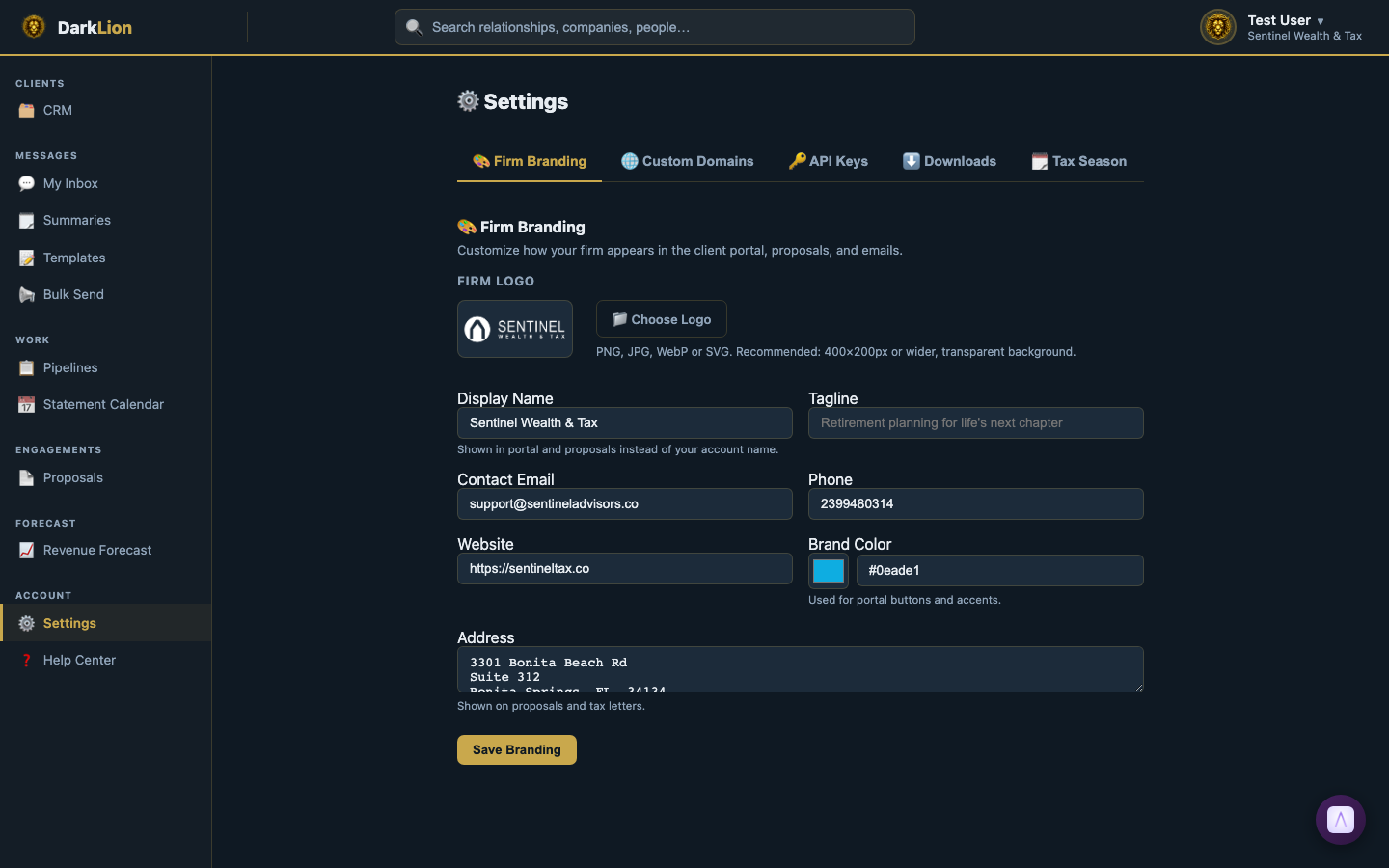
Go to Settings (⚙️) in the left sidebar to manage your firm's branding, custom domain, and tax season controls. Settings has five tabs.
Firm Branding Tab
Everything here controls how your firm appears to clients in the portal, in emails, and on PDF reports.
Logo
Upload your firm's logo (PNG or JPG, any size). The logo appears:
- In the client portal header
- On all PDF report covers (tax financials, workpapers)
- In email notifications to clients
- On proposals sent to clients
Display Name
Your firm's public-facing name — shown in the portal header and in email subject lines (e.g., "You have a new message from Sentinel Wealth & Tax"). This should match what clients know you as.
Tagline
An optional one-liner shown in the portal. Example: "Your trusted retirement advisory team."
Contact Email
The reply-to address for portal notification emails. When a client gets an email saying "you have a new message," this is the address that appears if they try to reply directly. Should be a monitored inbox.
Phone, Website, Address
Shown on client-facing materials — proposals, email footers, PDF reports.
Brand Color
A color picker that sets the accent color used throughout the client portal and on PDF report covers. Choose your firm's primary brand color.
Auto-lightening: If you choose a very dark color (e.g., near-black navy), DarkLion automatically adjusts it to a lighter shade that works against dark backgrounds. This ensures your branding is always legible regardless of how dark your chosen color is.
Save Branding
Click Save Branding to apply all changes. Changes take effect immediately for all new client sessions.
Tax Season Tab
The Tax Season tab has two controls for managing your organizer rollout each year.
Active Tax Year
The default tax year used throughout the app — when uploading documents, creating organizers, and building pipelines. Update this at the start of each tax season (e.g., change from 2024 to 2025 in January when you start taking on 2025 prep work).
Manage Client Organizer Visibility
Click 📋 Manage Client Organizer Visibility to open the Tax Season management page. This is where you control which clients see the Organizers tab in their portal.
- By default, the Organizers tab is hidden for all clients. Clients can't see or access their organizer until you enable visibility for them.
- Use Show All to flip all clients on at once — useful at the start of tax season when you want to open organizers firm-wide.
- Use Hide All to close access for everyone — useful at the end of season.
- Toggle individual clients on or off as needed — for example, if a client isn't ready yet or you're rolling out in batches.
Custom Domains Tab
By default, clients access the portal at darklion.ai/client-login. With a custom domain, they can access it at your own URL — for example, portal.sentinelwealth.co.
Setting Up a Custom Domain
- Go to Settings → Custom Domains tab.
- Enter your desired domain (e.g.,
portal.sentinelwealth.co). - DarkLion shows you the exact DNS values to configure.
- In your DNS provider (Cloudflare, GoDaddy, etc.), add a CNAME record:
- Name:
portal(or whatever subdomain you chose) - Value: DarkLion's provided CNAME target
- Name:
- DNS propagation typically takes a few minutes to a few hours.
- Once verified, DarkLion confirms the domain is active. Clients can now access the portal at your custom URL.