
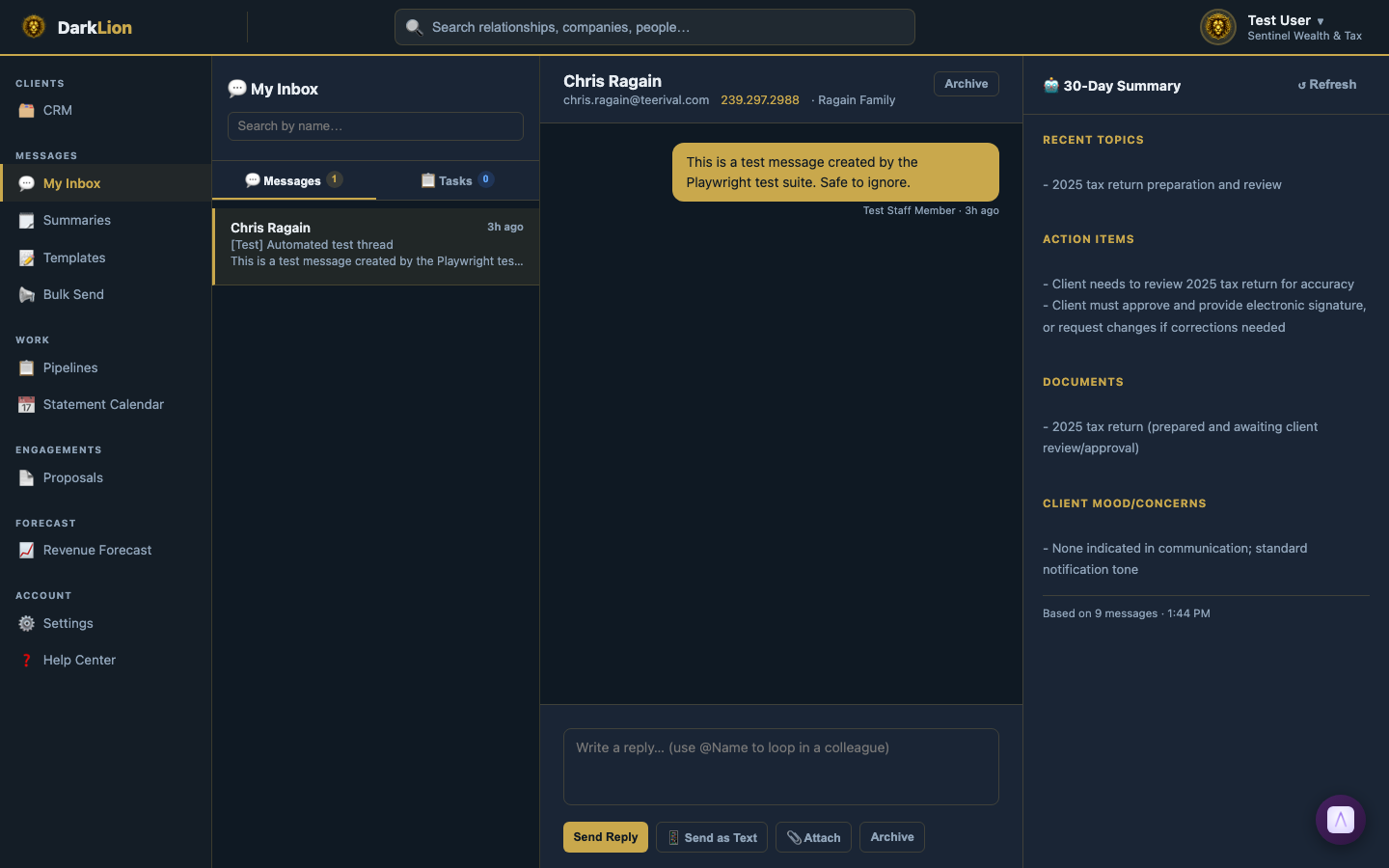
DarkLion has a built-in secure messaging system for day-to-day client communication. Clients can message from the desktop portal, and supported notification emails can route replies back into the same DarkLion thread.
How It Works
- Clients send messages from their desktop portal, or reply to supported notification emails. They see a chat-style interface when using the portal.
- Staff see all client messages in the shared Messages inbox. Threads from all clients come in here.
- When a client sends a message, the thread flips to Open status and appears at the top of the staff inbox.
- When staff reply, the thread flips to Waiting (waiting for client response).
- When the conversation is done, staff mark it Resolved and it moves off the active inbox.
Thread Statuses
- Open — Client sent a message; needs staff attention
- Waiting — Staff replied; waiting for client
- Resolved — Conversation complete; archived from inbox
Internal Notes
Staff can add internal notes to any thread — visible only to staff, never to the client. Useful for leaving context for teammates.
Client Notifications
When staff send a message, the client gets an email notification with the message preview and clear next steps. They can reply directly to supported emails, or use a desktop or laptop if the action requires the client portal.
Every message thread is also visible on the Person's or Company's Communication tab in the CRM. Staff don't have to go to the Messages inbox to reply — they can reply directly from the client's record.