
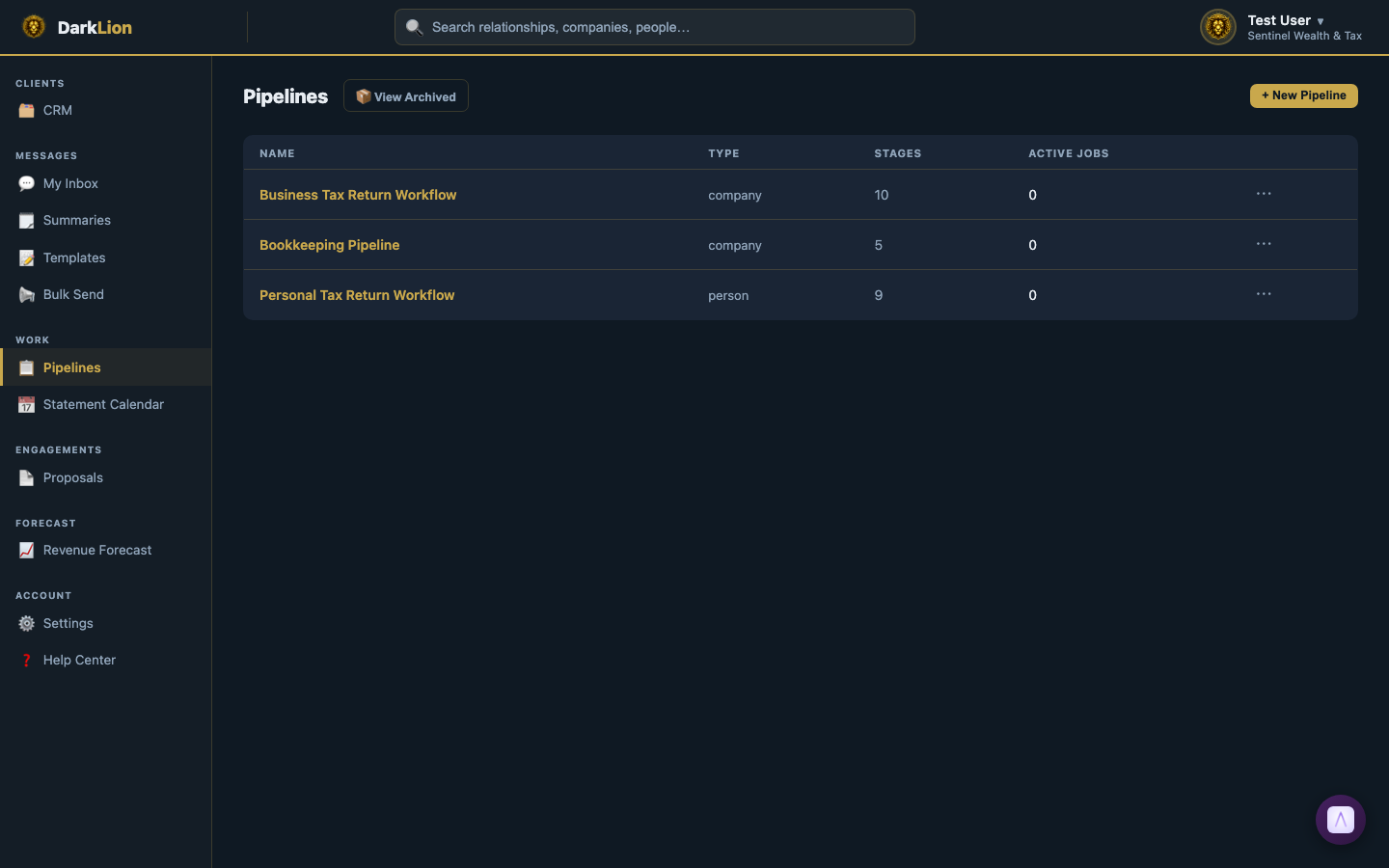
Pipelines are the workflow engine of DarkLion. They let you track every client through a repeatable process — like a tax return preparation workflow — using a visual kanban board.
Core Concepts
Pipeline Template
A Pipeline Template defines the process — its name, what type of entity it tracks (Companies, People, or Relationships), and its stages. You create a template once and reuse it every year.
Pipeline Instance
An Instance is a specific run of a template — e.g., "2025 Business Tax Returns." Instances are year-specific. When a new tax year starts, you create a new instance from the same template rather than rebuilding from scratch.
Stages
Stages are the columns in the kanban board — e.g., "Awaiting Documents", "In Preparation", "Client Review", "E-Sign Requested", "Delivered." You can create as many stages as you need and reorder them anytime.
Cards (Jobs)
Each Card represents one client entity moving through the pipeline. Cards are created manually (or automatically via Smart Triggers). A card shows the client's name, current stage, priority, and any notes.
The Kanban Board
Go to Pipelines in the left sidebar to see all your pipeline templates. Click a pipeline name to open the kanban board for its current year. You can:
- Drag cards between stages to move clients forward
- Click a card to open the detail panel (notes, assignee, due date, history)
- Use the ← → buttons on a card to move it one stage at a time
- Switch between years using the year selector in the board header
Automation
Pipelines connect to two automation systems:
- Smart Triggers — Events in DarkLion (like a client submitting financials) automatically move cards to the right stage.
- Stage Actions — When a card enters a stage, DarkLion can automatically send a portal message or create a staff task.