
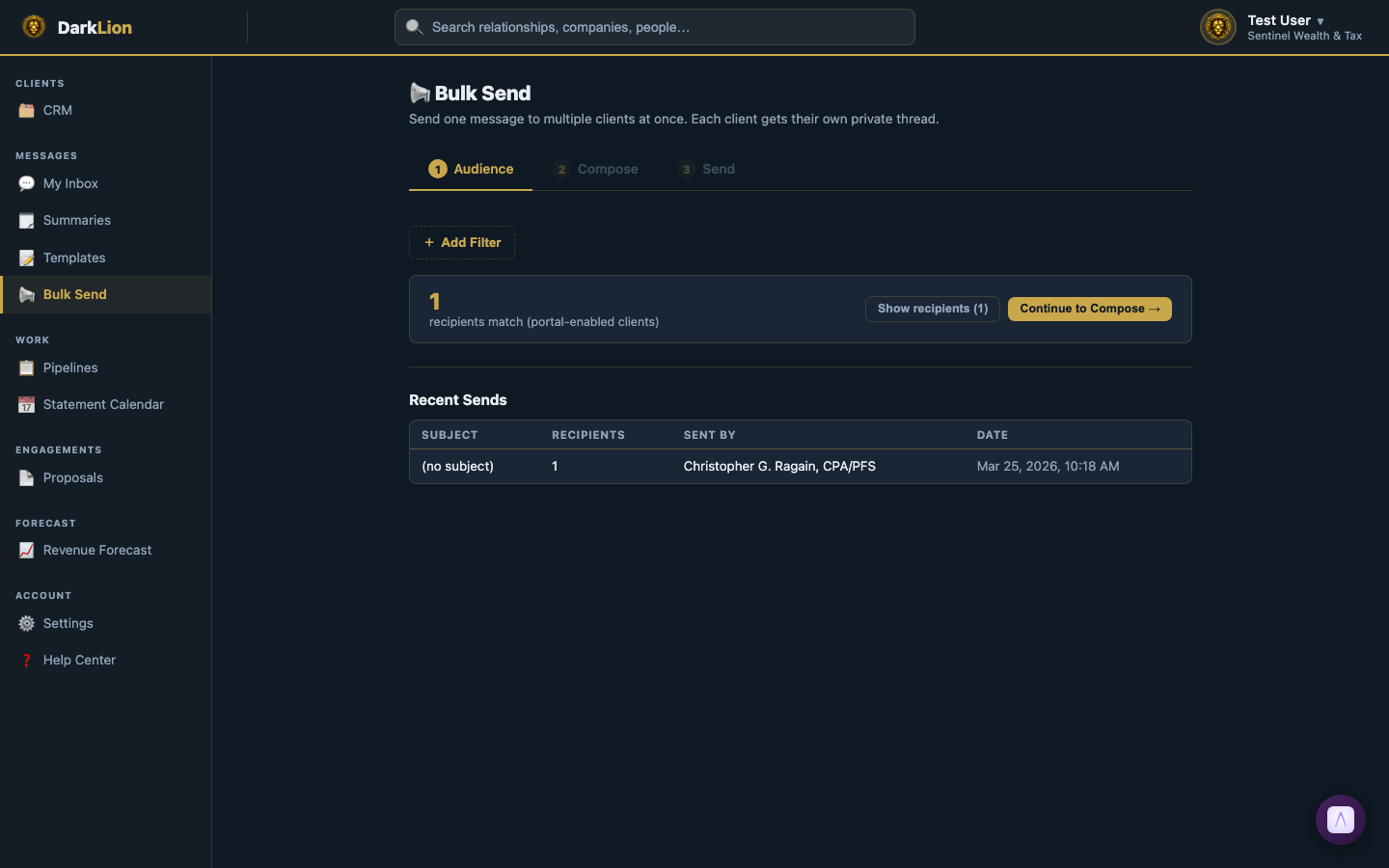
Bulk Send lets you send a portal message to many clients at once — tax season kickoffs, annual reminders, office announcements, or anything you need to communicate to a specific segment of your client base.
The 4-Step Bulk Send Flow
Step 1 — Build Your Audience
Add filters to define exactly who receives the message. Filters available:
- Relationship — Target specific named relationships.
- Service Tier — Legacy BluePrint, Full Service, or Tax Only.
- Billing Status — Active, Past Due, or Cancelled.
- Filing Status — Single, MFJ, MFS, HOH, Qualifying Widow.
- Entity Type — Person or Company.
- Portal Activity — Active (logged in recently) or Inactive.
- Pipeline Stage — Clients currently in a specific stage of a pipeline.
- Has Documents — Clients who do or don't have documents on file.
- Company Status — Target by company-level attributes.
Each filter has IS / IS NOT operators. Add multiple filters — they combine with AND logic (all must match).
Step 2 — Preview Recipients
Before writing a single word, click Preview Recipients to see the exact list of people who will receive this message based on your filters. You'll see names, email addresses, and relationship info.
This step is critical — confirm the audience is exactly who you intend before sending.
Step 3 — Compose
Write your subject and message body. Use merge tags to personalize each message:
| Tag | Resolves To |
|---|---|
{First Name} | Client's first name |
{Last Name} | Client's last name |
{Full Name} | Client's full name |
{Relationship Name} | Their household name (e.g., "The Smith Family") |
{Firm Name} | Your firm's display name |
{Company Names} | The names of their companies (based on filter) |
{Company Names} is particularly powerful — if your filter includes entity type filtering, this tag resolves to the actual company names for each individual recipient.
Step 4 — Send
Click Send. DarkLion sends individual portal messages to each matched client. Each recipient gets their own separate thread — completely private from other recipients.
After Sending
- Each client receives their message as an individual portal thread.
- If they reply, their reply comes back as a normal thread in your staff inbox — you handle them one-on-one, not as a group.
- Clients do not know they're part of a bulk send — it looks like a direct message from your firm.
Common Use Cases
- "Tax season is starting — here's what you need to do" (send to all active clients)
- "Your 2024 tax return is ready for review" (send to clients in a specific pipeline stage)
- "Our office will be closed November 27-29" (send to all active clients)
- "Please connect your QuickBooks before January 15" (send to all Client Prepared companies)